Artfull AI connects directly to an Ollama server you control. This guide shows the complete route: add the server, test and connect, select one of its models, start a conversation and attach a photo.
Before you begin: Ollama must be running and reachable from your iPhone or iPad. Keep both devices on the same trusted network, and use the computer’s local network address rather than localhost.
1
Add your Ollama server.
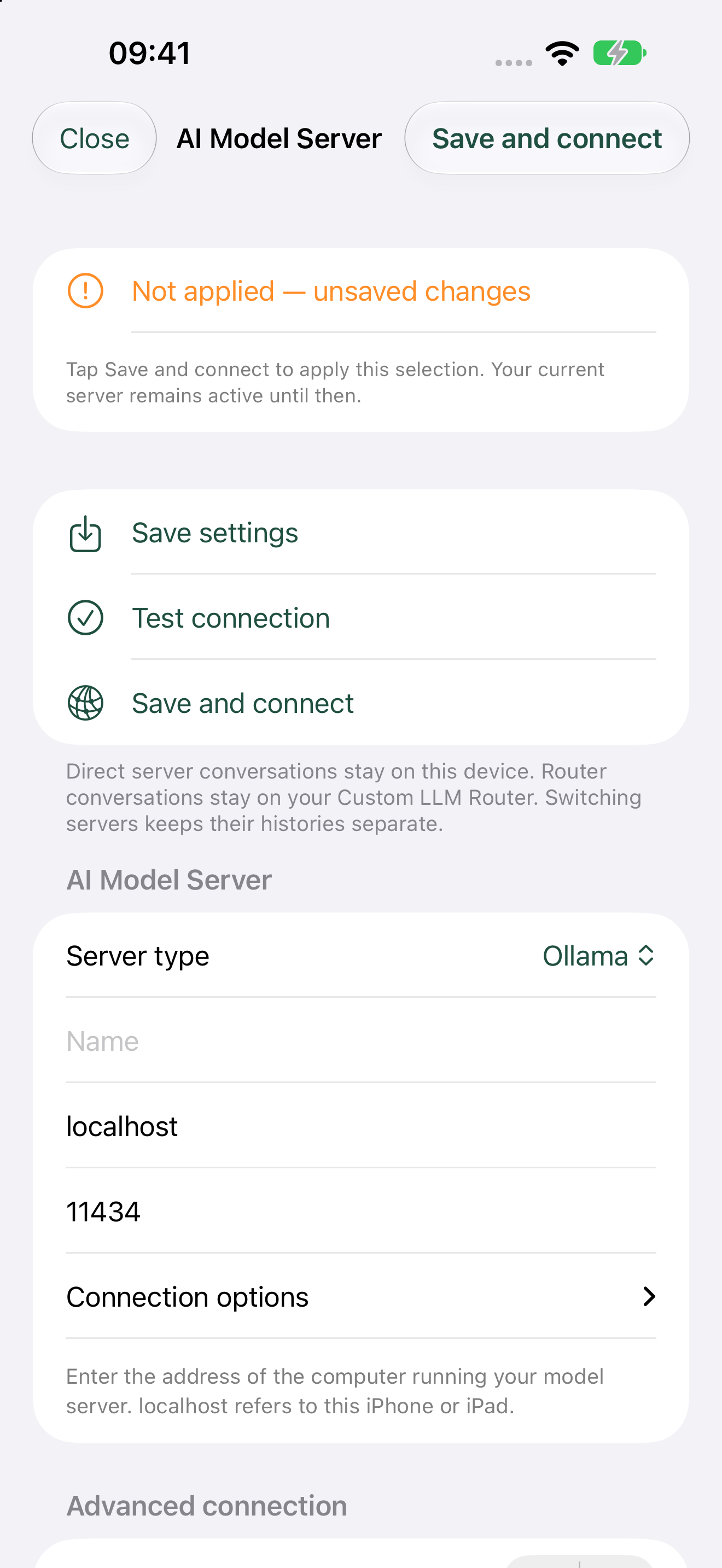
Open App settings, then choose AI Model Server.
Set the server type to Ollama.
Give the connection a memorable name.
Enter the computer’s local address and Ollama port, normally 11434.
Example: http://192.168.1.50:11434. Your address will be different.
The Ollama connection screen keeps the saved address and connection actions together.
2
Test, save and connect.
Use Test connection first. When it succeeds, choose Save and connect. Artfull AI applies the selected server deliberately; changing a field alone never silently moves a conversation.
If the test fails, confirm that Ollama is running, the address is the computer’s LAN address, the port is correct and the phone can reach that computer on the network.
Test the address, then explicitly save and connect.
3
Choose a model.
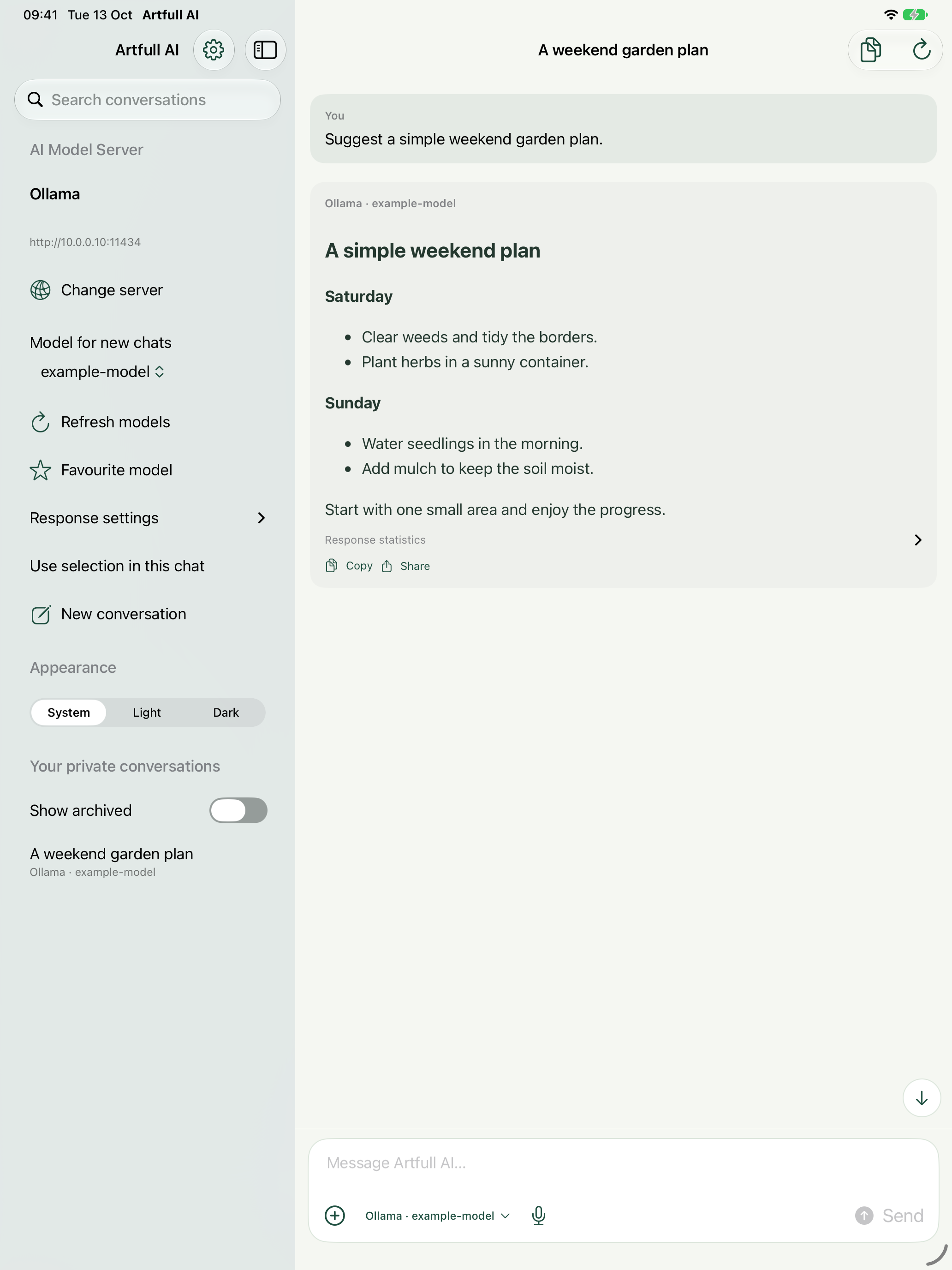
After connection, Artfull AI asks Ollama for its available models. Choose a model under Model for new chats, refresh the list when needed, and optionally mark a favourite.
Select New conversation to begin, or use Use selection in this chat when you intentionally want to change the active conversation.
The iPad layout shows server, model selection and conversation controls together.
4
Write, send and keep the source visible.
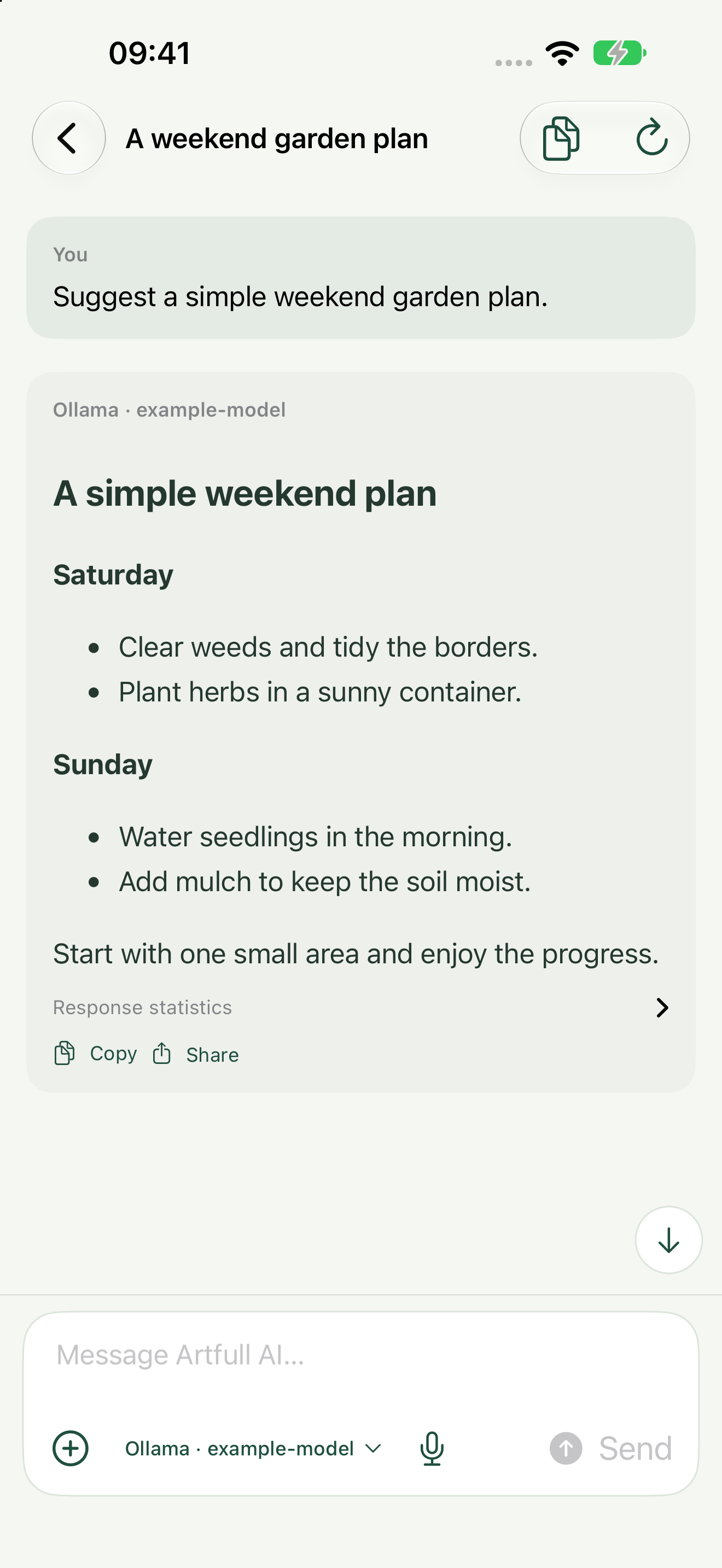
Type a message and send it to the selected model. Each answer keeps its Ollama and model label, even if you choose a different model later. Finished responses can be copied or shared, and Advanced can reveal response statistics.
A formatted response with its provider and model provenance.
5
Add a photo to the chat.
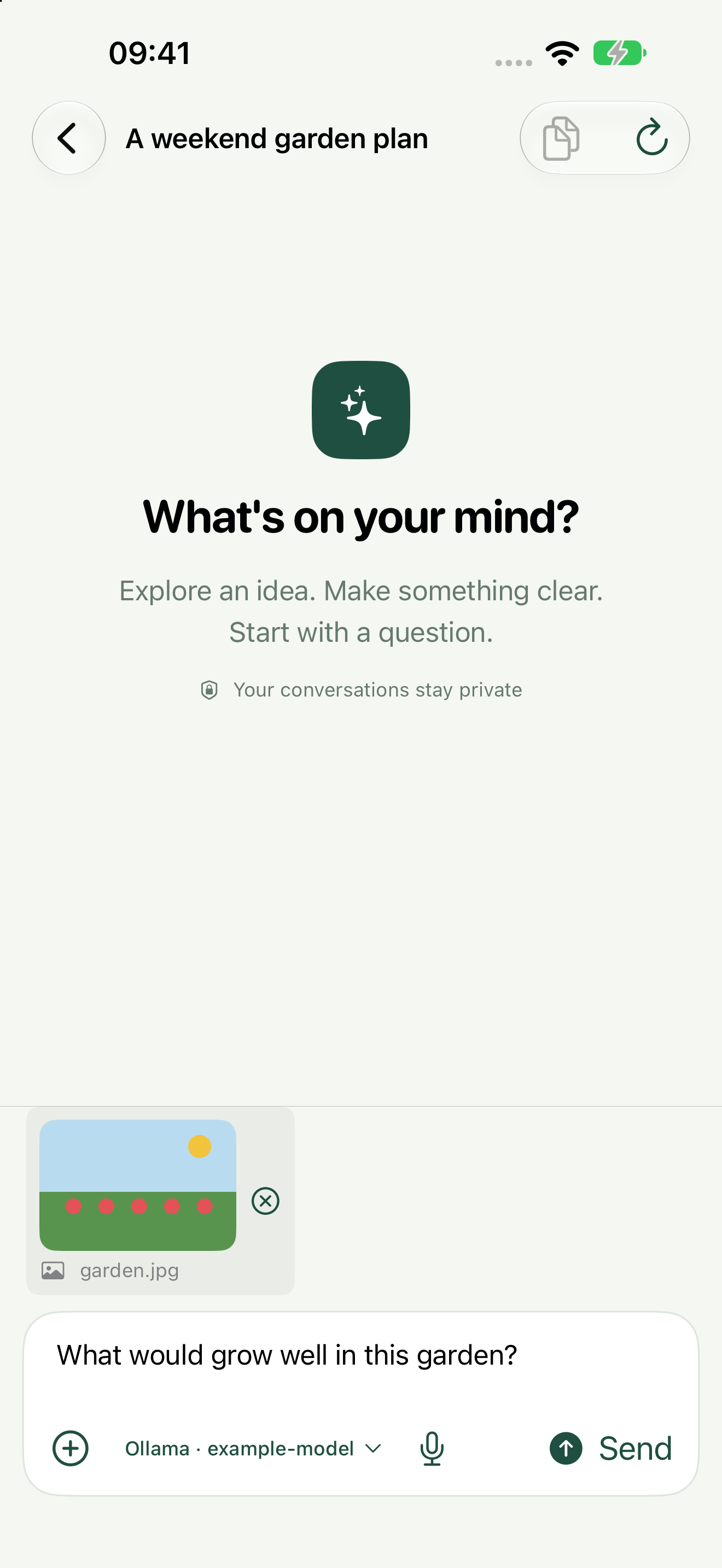
Tap the plus button beside the message field.
Choose Attach photo, or Take photo when the camera is available.
Review the photo above the composer, add your question and tap Send.
Use an Ollama vision model that supports images. Photos are included in Basic; files such as PDF, Word, Excel and PowerPoint are Advanced features.
A photo is visibly staged in the composer before it is sent to the selected Ollama model.
Keep exploring
More you can do.
Build 5 also includes native light and dark appearance, speech dictation, response Copy and Share, retry and stop controls, saved connections, and an iPad workspace. Advanced adds saved history, documents and data files, response statistics, per-server tuning and more connection types.
01
Files and images
Use photos in Basic, or unlock modern office documents, PDFs, text and CSV files with Advanced.
02
Conversation controls
Dictate, stop generation, retry failures, copy a response or share its formatted output.
03
Clear provider boundaries
Artfull AI keeps the selected model and provider visible and never silently reroutes an offline choice to cloud AI.
 Artfull AI